How to pay student fees
A quick guide on how to pay your student fees online through CNC Connect and PayMyTuition.Here's a quick guide on how to pay your student fees online.
To begin paying your student fees, you first need to sign in to CNC Connect or just go directly to the Pay my Tuition website.
New Credit Card Service Fees on PayMyTuition
Here are some no cost alternatives
Starting August 1, 2026, a 2% service fee will apply to credit card payments when making a tuition payment through PayMyTuition. You can avoid this if you pay by bank transfer directly from your account at no cost, use your bank’s Bill Pay service without fees, explore local payment options if you’re an international student as some may be fee-free in your currency, or use a supported eWallet with no service fees.

Screen 1: Welcome to the Payment Portal
Click on the appropriate payment option.
Select to either make a payment through a Canadian financial institution or through a financial institution outside of Canada.

Screen 2: Make a Payment
Enter the amount you are paying under "Make a Payment"
Note: if you are paying from more than one card or account, you will need to do a transaction for each payment separately.

Screen 3: Payment Options
Select your payment option and click "Continue with Payment"
Payment options include Online Bill Payment, Interac e-Transfer, Electronic Fund Transfers, Bank Transfer in Canadian Dollars (CAD), Visa- Debit or Credit in CAD, and Mastercard- Debit or Credit in CAD.

Screen 4: Payment Transfer Information: Payer Information
Fill out the payer's information in the screen provided, then click "Continue".
The payer must provide their name, address and contact information.

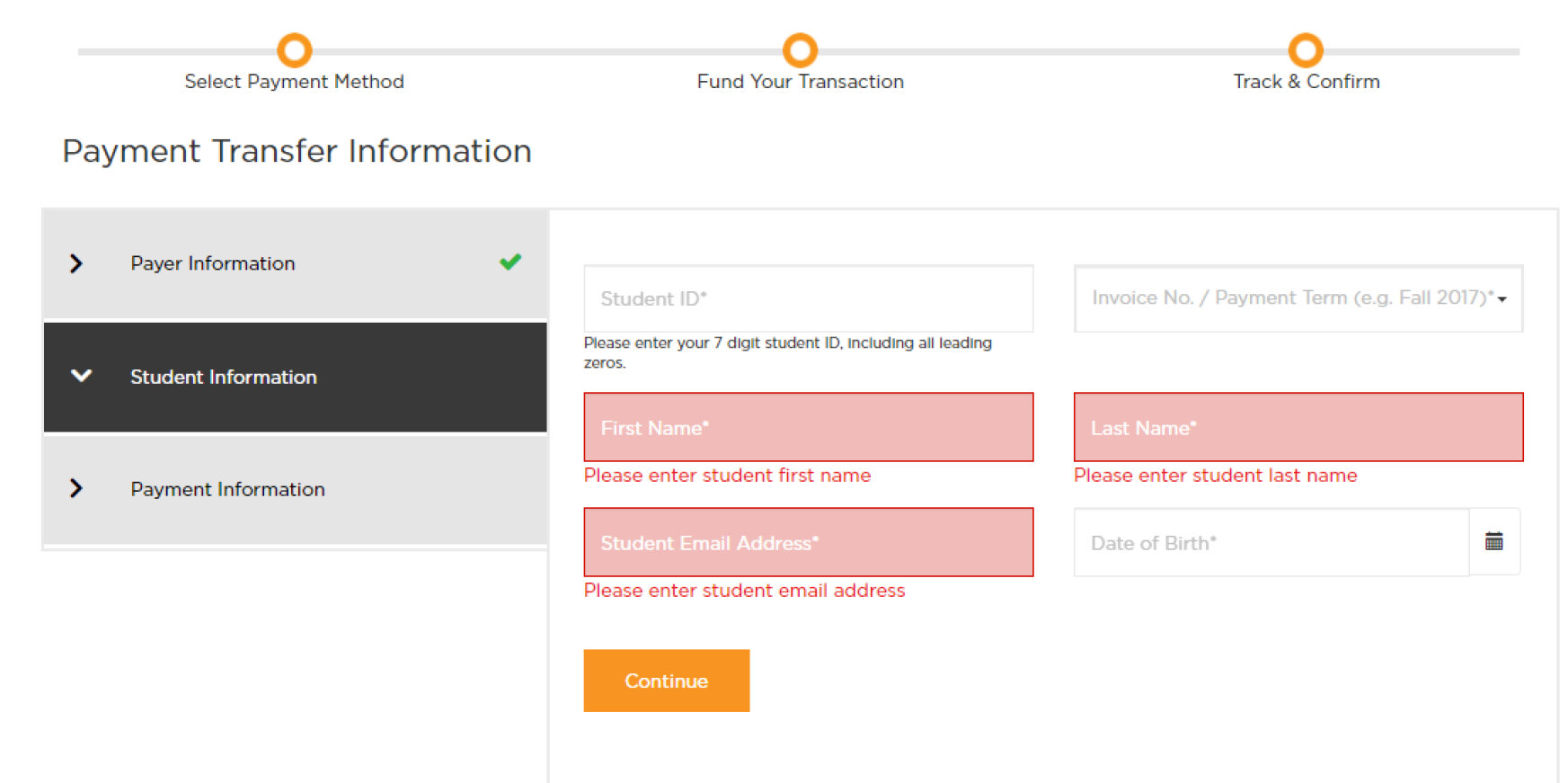
Screen 5: Payment Transfer Information: Student Information
Fill out the student's information in the screen provided, then click "Continue".
The student must provide their student number, name, email and date of birth.
Note: Your student number must be 7 digits, and your date of birth must be the same as what CNC has on file.
Screen 6: Payment Transfer Information: Payment Information
Select either Tuition Payment or Tuition Deposit.
Tuition Deposit is only to be used if there is no tuition owing on the semester being paid. Once you select the appropriate option, click "Continue".

Screen 7: Verification Screen
Verify the information provided, then click "Continue with Payment"
Screen 8: Payment
Review your payment details and click "Pay Now"
Fill out the information requested in order to complete the payment.
