How to Book a Library Study Room
Book a private room in the CNC Library to study or work with a group.1. Start Your Booking:
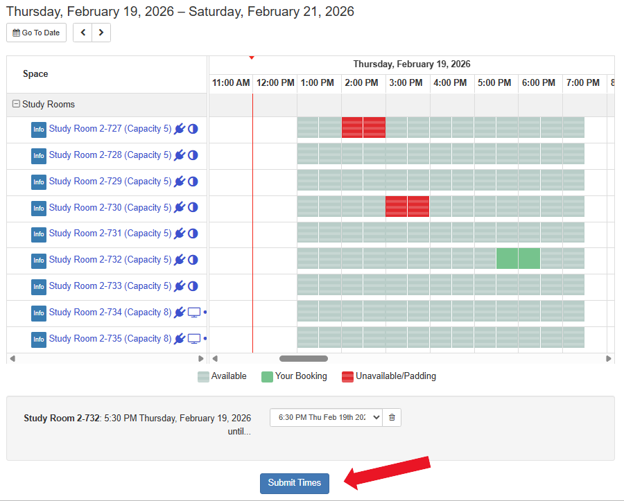
- Click on the CNC Study Room Bookings Portal, and you’ll see the availability grid. This tells you when each of the study rooms is available for booking.
- Bookings are made in 30-minute increments. The maximum booking is three hours.

2. Create a New Booking:
To learn more about what each room has to offer and where it is located, click on the blue Study Room links on the left

3. Choose your date:
To book today, skip ahead to choose your time.
To book a future date, use the Go To Date button, or click the arrow buttons to change one day at a time.

4. Book your time and study room:
- Once you have chosen your booking time, use your mouse to click into the time slot you want in the row of the study room you want.
- The color will change from light green to bright green until you’ve confirmed your booking, then it will turn red.
- Click Submit Times at the bottom of the page.
5. Log in with your CNC email and password (if prompted)

6. Check your booking details:
- Read your booking details to make sure they are correct.
- Click Continue to confirm.

7. Fill out the booking form:
- Type in your name, email address, and number of people in your group.
- Click Submit my Booking to confirm

8. Confirmation:
- Your booking will only be confirmed once you see this page with the green checkmark.
- Remember that your confirmation email will be sent to the email you provided in the booking form.
